
MA Trade Assistant
MA Trade Assistant Settings, Field Reference, and MT5 Hotkeys
The options behind the MORE tab, what each one changes, and how to use them safely. Terms such as ATR, OCO or POC are explained at the end of the page.
Best Practices for Safe MT5 Configuration
- Change one setting at a time and test it on a demo account.
- Risk mode and risk value decide the size of every trade. Check them before you press Buy or Sell.
- The hard close before news and the daily loss lock close positions by themselves. Turn them on only if you understand them.
- Hide SL / TP keeps the stops inside the panel. The panel must be running for them to work, so keep the terminal open (or enable the 2x SL emergency server stop in the F7 Inputs window).
- Pressing F7 on the chart opens the Inputs window, where you can also configure Risk safety & Trade limits: include round-trip commission in lot sizing, block orders exceeding a max risk %, anchor SL/TP distance to the real fill price, require a second click within 3 seconds for orders without SL, cap max open or daily positions, restrict trading hours, and block execution when the spread exceeds a multiple of the average spread.
Eight Position Sizing & Risk Calculation Modes
- A fixed currency amount.
- Percent of balance.
- Percent of equity.
- Percent of free margin.
- Percent of a custom base that you type.
- Percent of the previous day balance.
- Percent of the previous week balance.
- Percent of the previous month balance.
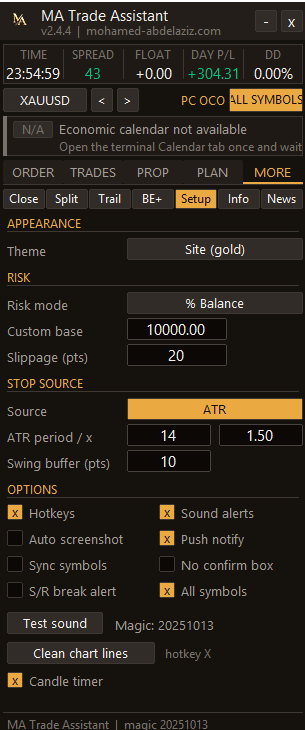
MORE · Setup
Your defaults.
- Theme
- Changes the look of the panel. Each press of the button cycles through the 6 built-in themes (Site gold, MT5 Teal, Light, Dracula, Nord and TradingView dark) and your choice is remembered. The three primary looks are shown on the Interface and themes page.
- Risk mode · Custom base · Slippage
- How risk is measured, the base amount for % custom, and the maximum slippage in pips.
- Stop source · ATR period / x · Swing buffer
- Manual, ATR or swing stop, the ATR period and multiplier, and the extra distance beyond the swing.
- Hotkeys · Sound alerts · Auto screenshot · Push notify
- Keyboard shortcuts, sounds, a screenshot when an order opens, and notifications to your phone.
- Sync symbols · No confirm box · S/R break alert · All symbols
- Synchronise symbols, skip the confirmation box, alert when a support or resistance line breaks, and work on all symbols.
- Test sound · Magic
- Check your sound and see the magic number used for the orders.
- Clean chart lines (hotkey X)
- Removes the panel's drawn overlay lines (entry/SL/TP preview lines, PLAN session levels and partial TP preview lines) from the chart in one click or by pressing X.
- Candle timer
- Turns the candle countdown on or off. It counts down to the close of the current candle on the chart's timeframe, using the server time. It shows minutes and seconds (for example 4:32), hours when needed (1:05:09), and days on weekly or monthly charts. A suffix appears if no ticks arrive for 60 seconds or if the terminal is disconnected, and the text turns orange-red in the last 10 seconds. Position, colours, size, font, the final-countdown time and the alerts (popup, sound file, phone push) are set in the tool's inputs window under Candle timer.
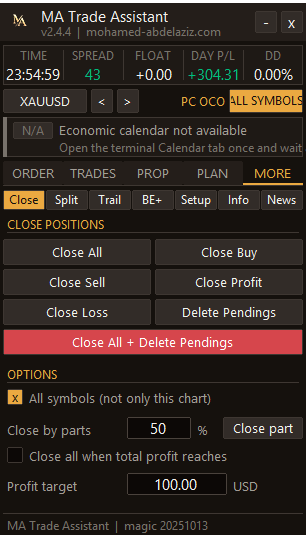
MORE · Close
Close positions in one click.
- Close All · Buy · Sell · Profit · Loss
- Close every position, only the buys, only the sells, only winners or only losers.
- Delete Pendings · Close All + Delete Pendings
- Remove pending orders, with or without closing the open positions.
- All symbols
- Apply the close buttons to every symbol, not only this chart.
- Close by parts
- Close a percentage of the position.
- Close all when total profit reaches
- Closes everything when the total profit reaches your target amount.
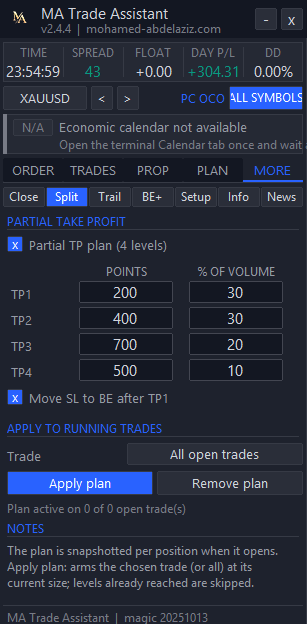
MORE · Split (partial take profit)
Take profit in steps and arm or remove the plan on running trades.
- Partial TP plan
- Turns the four-level plan on. The plan is snapshotted per position when it opens.
- TP1 to TP4
- 1 to 4 levels, added or removed on the panel or with the X next to each level on the chart. For each level, the distance in the chosen unit, the percent of the volume to close and its real price.
- Move SL to BE after TP1
- After the first partial, the stop loss moves to break-even.
- Apply to running trades (Trade · Apply plan · Remove plan)
- Choose All open trades, All trades on the current symbol, or a single ticket, then press Apply plan (or Remove plan). Levels already passed by price are skipped automatically.
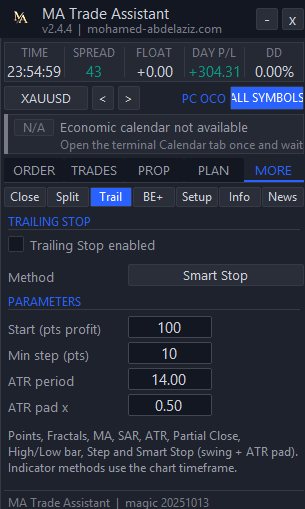
MORE · Trail (trailing stop)
Let the stop follow the price.
- Trailing Stop enabled
- Turns trailing on.
- Method
- Points, Fractals, MA, Parabolic SAR, ATR, Partial Close, High/Low bar, Step or Smart Stop.
- Start (pts profit)
- How many points in profit before the trailing starts.
- Min step (pts)
- The smallest move of the stop, to avoid constant tiny changes.
- Method parameters
- Two values that change with the method, for example ATR period and multiplier.
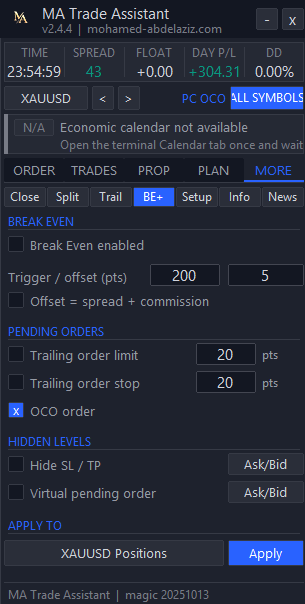
MORE · BE+ (break-even and pending tools)
Advanced protection and order tools.
- Break Even enabled · Trigger / offset
- Move the stop to break-even after a number of points in profit, with an extra offset. “Offset = spread + commission” covers the costs.
- Trailing order limit / stop
- Pending orders that follow the price at a set distance.
- OCO order
- When one of two pending orders is triggered, the other is cancelled.
- Hide SL / TP
- Keeps stop loss and take profit inside the panel instead of sending them to the broker. Choose Ask/Bid, Bid or Ask as trigger.
- Virtual pending order
- A pending order that only exists in the panel until price touches it.
- Apply to
- Choose all positions of the symbol or one ticket, then press Apply.
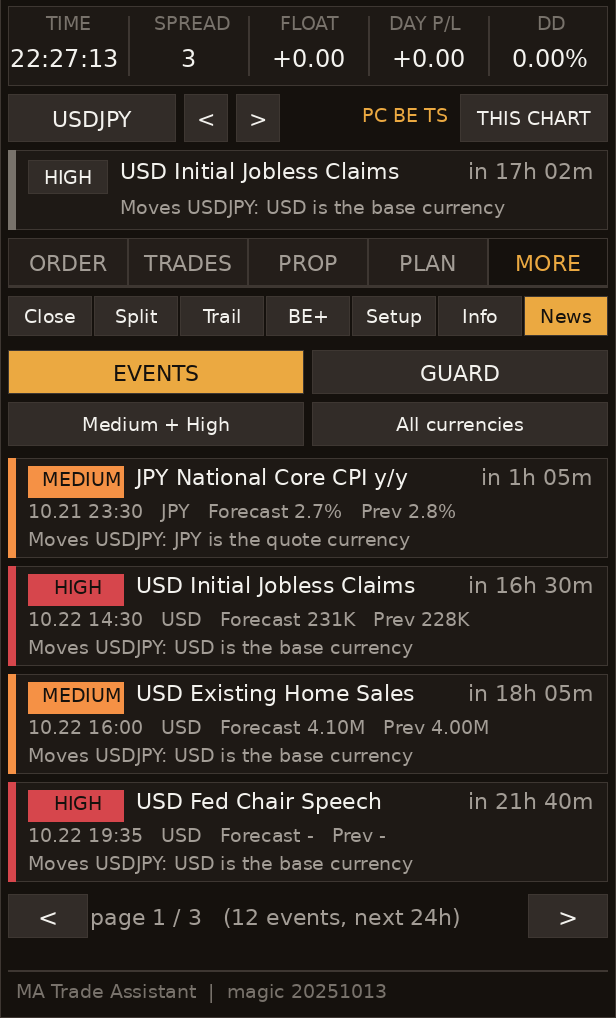
MORE · News (events and guard)
See the news and protect yourself from it.
- EVENTS
- The list of upcoming events: impact, name, countdown, time, currency, forecast, previous, and how it relates to your chart symbol.
- Medium + High · This chart only / All currencies
- Filter by impact and by currency.
- GUARD · block new entries
- Blocks new orders before and after an event. Set the minutes for each side.
- Impact filter · All currencies
- Choose which events count, and whether only your symbol's currencies matter.
- Hard close before events
- Optional. Closes positions a few minutes before an event. Off by default. You can limit it to positions on the event currency.
MORE · Info
Live account and symbol specifications (18 rows).
- Account details
- Account login and broker server, leverage and currency, balance and equity, used and free margin, margin level % and floating P/L, open positions / pending orders / virtual pending orders on the symbol, previous Day/Week/Month balance (AB), and broker server time.
- Symbol specifications
- Current symbol and spread, digits and point size, the pip definition (for example 1 pip = 0.10 on gold), tick value and tick size, lot min / max / step, contract size, swap long and short, broker stops level and freeze level, and round-trip commission per lot (showing [in risk] when included in lot sizing).
MT5 Panel & Order-Flow Glossary
Only the terms that appear in the panel.
- MQL5 Experts folder / Algo Trading
- In MetaTrader 5, any chart utility that sends or modifies orders must be placed in MQL5 -> Experts and have Allow Algo Trading enabled. MA Trade Assistant is a manual trade panel, not an automated trading robot.
- ATR (Average True Range)
- The average distance price moves in a period. The panel uses it to suggest a stop distance and to judge the spread.
- R/R (risk/reward)
- Your possible gain compared with your risk. R/R 2 means you aim to win twice what you risk.
- BE (break-even)
- Moving the stop loss to the entry price, plus an optional offset, so the trade can no longer lose.
- TP1 to TP4
- Four partial take-profit levels. At each one the panel closes a part of the position.
- OCO (one cancels the other)
- Two pending orders linked together. When one is triggered, the other is cancelled.
- VWAP
- Volume-weighted average price: the average price of the day weighted by volume.
- POC (point of control)
- The price level with the most volume in the profile.
- VAH and VAL
- The top and the bottom of the value area, the zone that holds about 70 percent of the volume.
- Tick volume
- The number of price changes your broker sends. It is not the real traded volume of an exchange.
Related educational guides: Volume Profile (POC, VAH & VAL) · Auction Market Theory · Risk Management & Position Sizing
Free Download & MetaTrader 5 Setup
Install free in one click from the official MQL5 Market, attach it to your chart in MetaTrader 5, and enable Algo Trading.
Discover how different charting types — from Time and Tick to Volume Profile and Footprint — change your market perspective and execution.
Free MA TradeLab (v2.5.3): Institutional trading journal, personal & trading financial management, prop firm risk engine (PFIE), studio audio news alerts, and direct localhost syn…
A structured approach to understanding how markets really move — through order flow, volume, and liquidity.