
MA Trade Assistant
MA Trade Assistant Interface Layout and Built-In MT5 Themes
How the panel is laid out, and how to change its look. Every screenshot is a real capture of version 2.4.4.
How the MT5 Panel Interface Is Laid Out
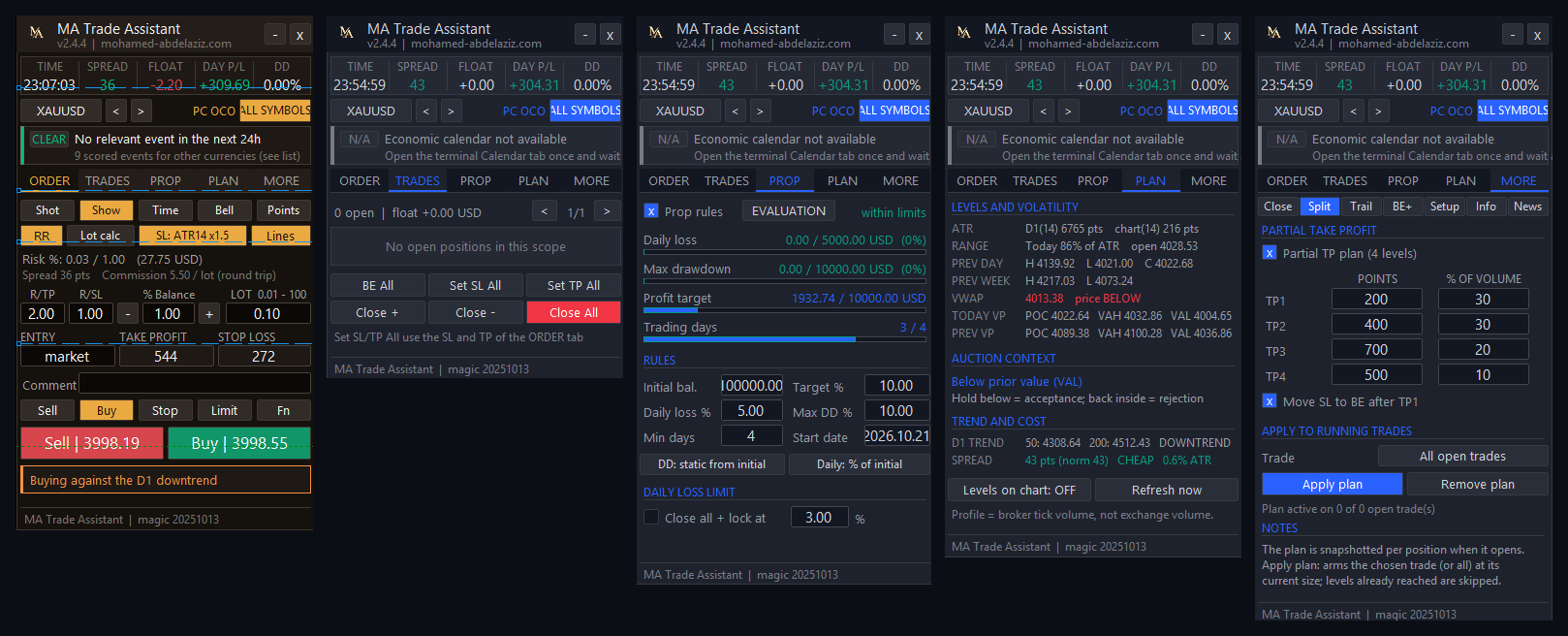
The panel has a persistent top header, a live status strip, an economic news card, and five functional tabs. The structure stays identical across every theme.
- ORDER
- Size and send a trade: risk, stop loss, take profit, lot and the findings card.
- TRADES
- One card per open position, with break-even, close and bulk buttons.
- PROP
- The rules of your prop firm challenge and your progress against them.
- PLAN
- A map for the session: ATR, previous day and week levels, VWAP and volume profile.
- MORE
- Close, Split, Trail, BE+, Setup, Info and News pages. See Settings and advanced options.
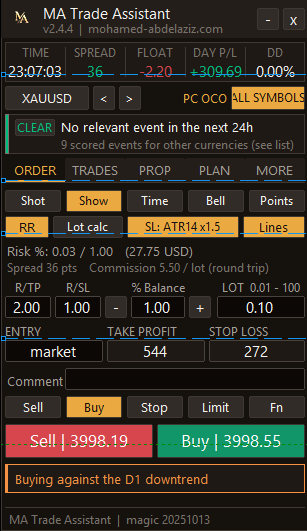
Header, status strip and news card
Always visible at the top of the panel.
- Logo and title
- Drag the header to move the panel. The “-” button minimises it and “x” closes it.
- TIME · SPREAD · FLOAT · DAY P/L · DD
- Broker time, current spread in the chosen unit (pips by default), floating profit or loss, today's result and the drawdown.
- Symbol and < >
- Shows the traded symbol. Use the arrows to switch to the next or previous symbol.
- THIS CHART / ALL SYMBOLS
- Scope of the management tools (break-even, trailing, close): this chart only, or every symbol.
- PC · BE · TS · OCO
- Lights up when partial close (PC), break-even (BE), trailing stop (TS) or OCO pending orders are armed.
- News card
- The next relevant event with its impact (HIGH or MEDIUM), name, countdown, and how it moves your symbol. Click the impact badge to open the News tab.
Built-In MT5 Panel Themes (Site Gold, TradingView & Dracula)
Version 2.4.4 includes six built-in colour themes. Only the palette changes—the layout and controls remain identical. Below are full-resolution captures of the three primary dark themes.
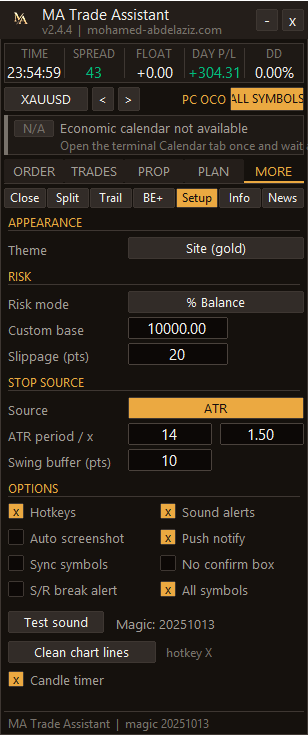
Site (gold)
The default. Warm near-black with gold accents, like this website.
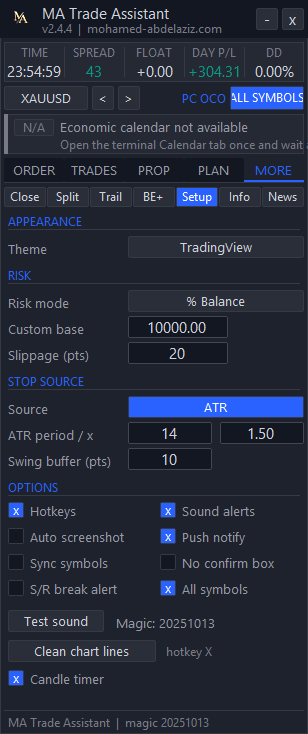
TradingView
A cool dark blue-grey with a blue accent, close to a TradingView chart.
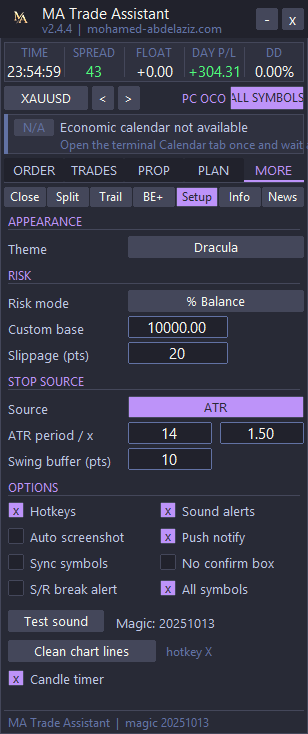
Dracula
Dark slate with a lilac accent and a soft contrast.
The images are shown at their real size. The panel is a compact window of about 300 pixels, so the screenshots are small by nature.
How to Switch Panel Themes in MetaTrader 5
- In the panel: open MORE, then Setup, and press the Theme button under Appearance. Each press moves to the next built-in theme and your choice is remembered. Press until the theme you want is shown.
- In the inputs window: press F7 on the chart (or right-click the chart, Expert Advisors, Properties), open Inputs and choose a value for Panel theme. This sets the theme the panel starts with.
Version 2.4.4 includes six built-in themes in total: Site (gold), TradingView dark, Dracula, MT5 Teal, Nord, and Light. This guide shows full screenshots of the three dark themes above; you can cycle through all six using the Theme button in MORE -> Setup.
Free Download & MetaTrader 5 Setup
Install free in one click from the official MQL5 Market, attach it to your chart in MetaTrader 5, and enable Algo Trading.
Discover how different charting types — from Time and Tick to Volume Profile and Footprint — change your market perspective and execution.
Free MA TradeLab (v2.5.3): Institutional trading journal, personal & trading financial management, prop firm risk engine (PFIE), studio audio news alerts, and direct localhost syn…
A structured approach to understanding how markets really move — through order flow, volume, and liquidity.