
Tools
MA ChartScroll: mouse-drag chart navigation for MetaTrader 5
Scroll through history by dragging, resize the time and price scales with the mouse, zoom with the wheel, and hand scrolling back to the terminal with one click. MA ChartScroll changes how you move around a chart, not what the chart shows.
Version 1.00 · Windows · MetaTrader 5 · indicator only: no DLLs, no web requests, no trading functions
What MA ChartScroll does
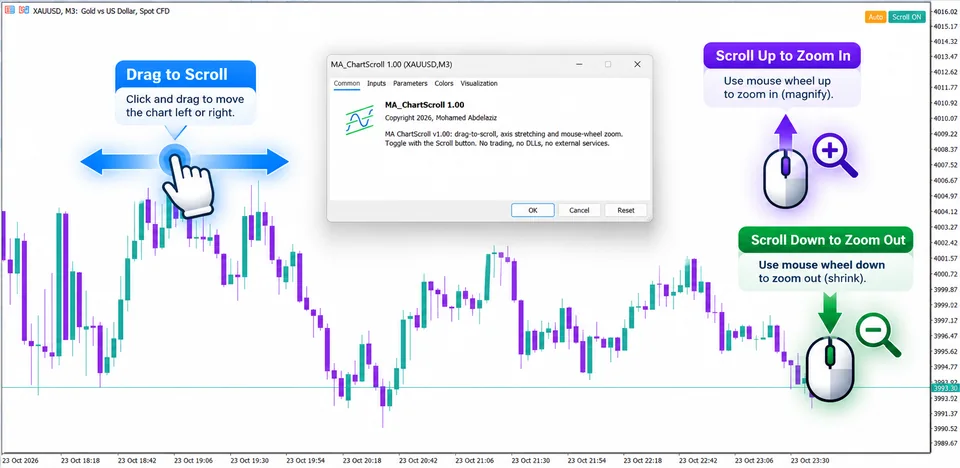
MA ChartScroll is a navigation layer for MetaTrader 5 charts. While it is on, holding the left mouse button and moving the pointer scrolls the chart through time and, in the main window, through price. Dragging the time or price scale resizes it, and the wheel changes the zoom level around the pointer.
It is meant for reviewing history without reaching for the keyboard. It records every chart property it changes and puts each one back when you switch it off, unless you changed that property yourself in the meantime.
It is a navigation tool only. It does not place orders, does not generate signals or predictions and makes no claim about trading results. The code uses no DLLs and makes no web requests.
Why navigation matters
In the default terminal, moving through time and changing the price range are separate actions. MA ChartScroll brings them under one drag inside the chart, so reviewing a move, measuring between levels or framing a screenshot takes fewer steps.
Key features
One drag, two directions
Hold the left button and move. Time follows the pointer bar by bar. In the main window the price range follows too, but only after a small vertical threshold, so a mostly horizontal drag keeps automatic scaling. Indicator sub-windows move horizontally.
Wheel zoom with a choice of trigger
Zoom around the pointer with the wheel, only while Ctrl is held, or turn the feature off and keep the terminal's own wheel behaviour.
Scale dragging
Drag along the time scale to zoom in steps with the right edge held in place. Drag the price scale to stretch or compress the visible range around its centre. Each has its own switch and sensitivity.
Scroll and Auto buttons
One button in the chart corner turns navigation on and off. The Auto button lights up only while the price scale is manual, and a click returns it to automatic.
A clean hand-back
Switching off or removing the indicator restores the properties it changed, such as native drag scrolling and the fixed scale, and leaves alone any value you changed yourself.
Carries over timeframe and symbol changes
The on/off state and saved chart settings move with you when you change timeframe or symbol. A second copy on the same chart needs its own Instance id.
How to use it
- 1
Attach the indicator
Drag MA ChartScroll from the Navigator onto a chart. A Scroll OFF button appears in the upper-right corner.
- 2
Turn Scroll on
Click the button until it reads Scroll ON. The terminal's own drag scrolling is paused meanwhile so the two never compete. You can also start with Scroll ON from the settings.
- 3
Drag the chart
Hold the left button and move. A few pixels of movement are needed before a drag starts, so a plain click never moves the chart.
- 4
Zoom
Scroll up over the chart to zoom in and down to zoom out, or drag the time scale or price scale.
- 5
Reset the price scale
When the Auto button is lit, click it to return the price scale to automatic.
- 6
Turn Scroll off
Click the button again. The terminal gets its native behaviour and your chart settings back.
Installation
MA ChartScroll is distributed free through MQL5 Market. Open the official product page, choose Download, then attach the indicator to a chart from the Navigator in your MetaTrader 5 terminal. It can also be found by searching for MA ChartScroll in the Market tab of the terminal.
- Version
- 1.00
- Platform
- MetaTrader 5 (Windows)
- Type
- Chart indicator
- Distribution
- MQL5 Market (free)
Settings
Every setting is optional; the defaults work out of the box.
- Start with Scroll ON
- Whether the indicator starts in the on state when first attached.
- Button corner and offsets
- Chooses the chart corner and pixel offsets for the Scroll and Auto buttons.
- Show Auto button and colours
- Shows or hides the Auto button, and sets the colours for Scroll ON, Scroll OFF, the text and the lit Auto state.
- Allow vertical scrolling
- Lets vertical drags move the price range in the main window.
- Drag threshold and vertical engage
- How far the pointer must move before a drag starts, and before vertical movement switches the price scale to fixed.
- Axis drag and speed
- Turns time-axis and price-axis dragging on or off, with the pixel distance per zoom step and the price-stretch sensitivity.
- Mouse-wheel behaviour
- Off (native wheel only), Wheel zooms, or Ctrl + Wheel zooms.
- Instance id
- Change it only when you attach a second copy to the same chart.
Good to know
- Horizontal zoom uses the six zoom levels built into MetaTrader 5, so it moves in steps rather than continuously.
- While Scroll is on, dragging a chart object also moves the chart. Switch Scroll off to edit objects.
- MetaTrader 5 does not let an indicator intercept every wheel and axis event, so the terminal may still react natively in some places.
- Other indicators on the same symbol share one execution thread in MetaTrader 5, so a very heavy indicator can make dragging less smooth.
Frequently asked questions
Does MA ChartScroll give trading signals?
No. It only changes how you move and zoom the chart. It places no orders, draws no signals and makes no predictions.
Does it work on every symbol and timeframe?
It does not depend on the symbol or timeframe. It controls the chart window, so it works wherever you can attach a chart indicator.
Why does the chart stop scrolling the usual way while Scroll is on?
While Scroll is on the indicator takes over left-button dragging and pauses MetaTrader 5's own drag scrolling, so the two do not fight. Switching Scroll off restores it.
Does it use DLLs or the internet?
No. The indicator is a single compiled file with no DLL imports, no web requests and no trading functions.
Can I use two copies on one chart?
Yes, but give the second copy a different Instance id, otherwise it will refuse to start and write a message to the Experts log.
Where do I get it?
From the official MQL5 Market product page, which this site links to. It is free, and no other download is offered.
Version history
v1.00
- Drag-to-scroll in both directions, time-axis and price-axis dragging, and mouse-wheel zoom around the pointer.
- Scroll and Auto buttons, with the Auto button lit while the price scale is manual.
- Restores the chart settings it changed, and keeps the Scroll choice across timeframe and symbol changes.
Related tools
More tools built for MetaTrader 5 and chart analysis.
- MA Trade AssistantA trade panel for MetaTrader 5, built for fast and controlled order handling.
- MA ICT Killzones & PivotsKillzones, session pivots and a Session Volume Profile for MetaTrader 5, NinjaTrader 8 and ATAS.
- All toolsThe full list of tools I build and use for research, execution and learning.
Get MA ChartScroll
Discover how different charting types — from Time and Tick to Volume Profile and Footprint — change your market perspective and execution.
A desktop downloader for saving learning material for offline study.
An ICT killzones indicator for MetaTrader 5, NinjaTrader 8 and ATAS with session pivots and a Session Volume Profile with POC, VAH and VAL.
Disclaimer
- MA ChartScroll is a chart navigation tool. It is not financial advice, it gives no trading signals and it does not guarantee any result.
- Trading leveraged products involves substantial risk of loss. Past performance does not guarantee future results.